FamGo Travel includes Disney cruise-specific tools for Premium subscribers — real port schedules pulled from FamGo’s itinerary library, cruise timeline reminders, and packing tuned for life at sea. This guide walks through the in-app flow from creating a cruise trip through port-day planning.
Step 1 — Create a cruise trip
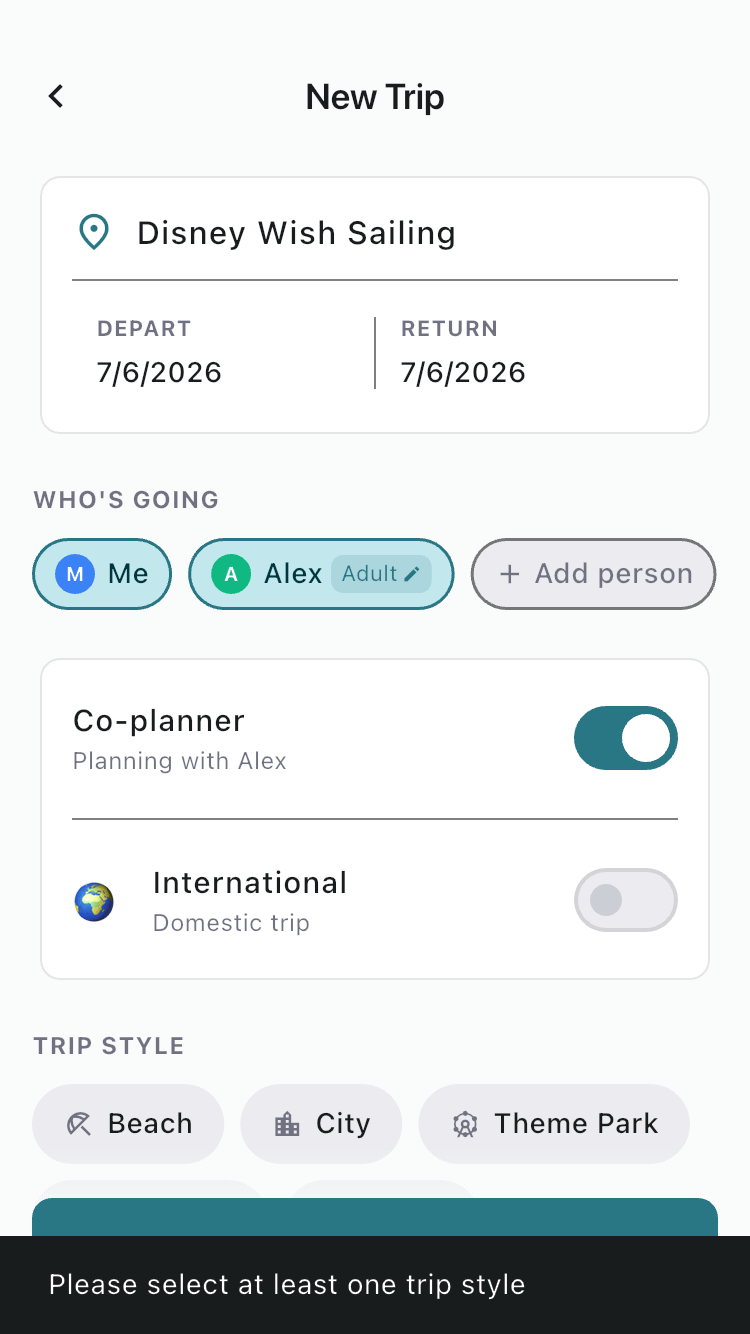
From My Trips, tap New Trip. Name your sailing (e.g. “Disney Wish Cruise”), set embarkation and debarkation dates, select who is sailing, and choose Cruise under trip style. Tap Create Trip.
On Premium, FamGo opens Disney Cruise setup right after create. You can also reach it later from the trip’s Info tab.
Step 2 — Turn on Disney Cruise setup
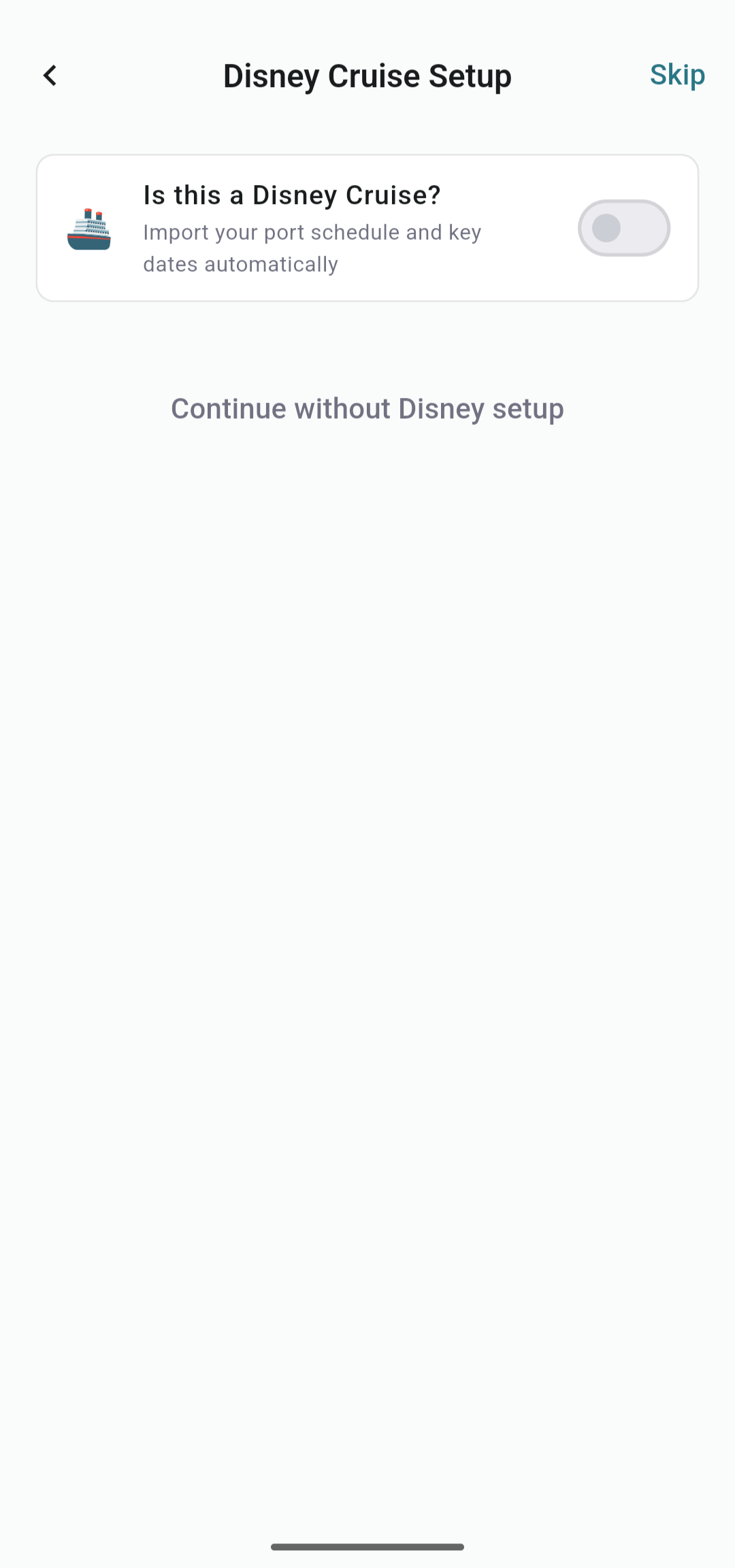
On the Disney Cruise Setup screen, toggle Is this a Disney Cruise? to import your port schedule and key pre-cruise dates automatically. Tap Skip or Continue without Disney setup if you only want a generic cruise trip.
Step 3 — Find your sailing
Choose your ship and sail date — use the actual embarkation date even if travel starts earlier. Tap Find Port Itinerary. If multiple sailings match, pick the correct one from the list (length, theme, and dates).

Step 4 — Review the port itinerary
FamGo shows the full port schedule — embarkation and debarkation times, each port day, sea days, and Castaway Cay with ashore and all-aboard windows. Confirm it matches your reservation before importing.

Step 5 — Castaway Club timeline
Set your Castaway Club status (or check Concierge Guest) so FamGo schedules the right activity-booking, payment, and online check-in reminders. Tap Add Itinerary — FamGo imports port days into Plan and adds dated reminders to Tasks.

Step 6 — Plan port days
Open the Plan tab for a structured day-by-day view. Each port shows ashore and all-aboard times from your imported itinerary. Tap + to add excursions, dining, and activities. Sea days and Castaway Cay have their own day tabs.

Tasks, Pack, and Docs
After import, check Tasks for cruise prep reminders (check-in, payment due dates, and booking windows). Pack includes cruise-aware categories — formal nights, pool gear, and kids essentials. Store boarding passes and confirmations in Docs (unlimited on Premium).
Planning with another family on the same cruise?
If you are sailing with friends or extended family in separate staterooms, see our big family / group trip guide — you can share the trip itinerary while each household keeps its own packing list private.