FamGo Travel is local-first — your trip data lives on your phone and works offline. On the Free plan you get one active trip, generated packing and prep tasks, and up to three documents per trip. This guide walks through the exact screens you will see when planning your first family vacation.
Step 1 — Finish onboarding
When you open FamGo for the first time, you will see a short welcome flow. Enter your name and email, then optionally add family members on the Set up your travel crew step. Even on Free, adding kids now means packing lists include the right sizes, gear, and reminders later.
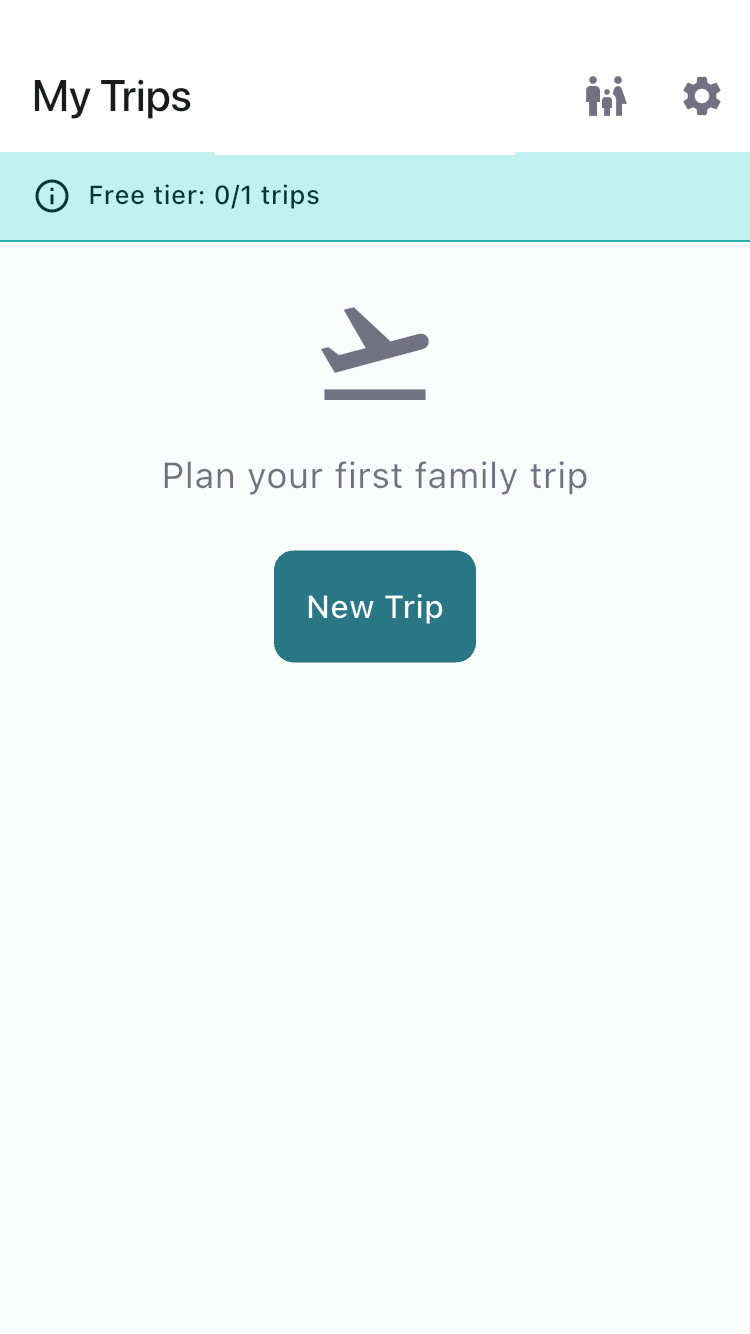
Step 2 — Create your first trip
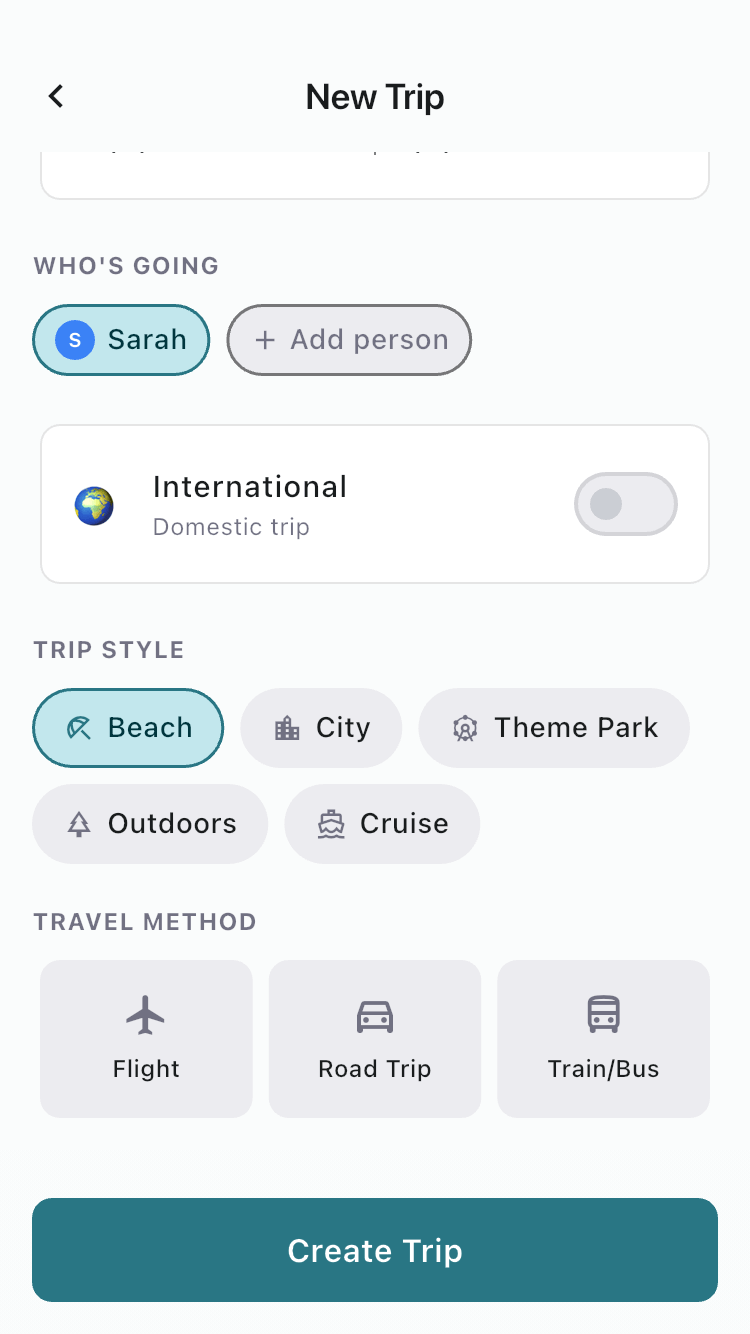
Tap New Trip and fill in the basics on the create screen:
- Trip name — e.g. “Beach Week” or “Grandma’s house”
- Dates — departure and return (drives your day-by-day tabs)
- Who’s going — select family members from your crew
- Trip style — Beach, City, Theme Park, Outdoors, or Cruise (cruise setup requires Premium)
- Travel method — fly, drive, or other (affects generated tasks)
Tap Create Trip. FamGo instantly generates a prep task list and packing list tailored to your dates, travelers, and trip style — no blank spreadsheet required.
Step 3 — Work through Tasks
Open your trip and stay on the Tasks tab first. You will see generated reminders like booking lodging, checking passports, or packing carry-on essentials — organized by when they are due. Tap the checkbox to complete a task; FamGo tracks your progress at the top of the tab.

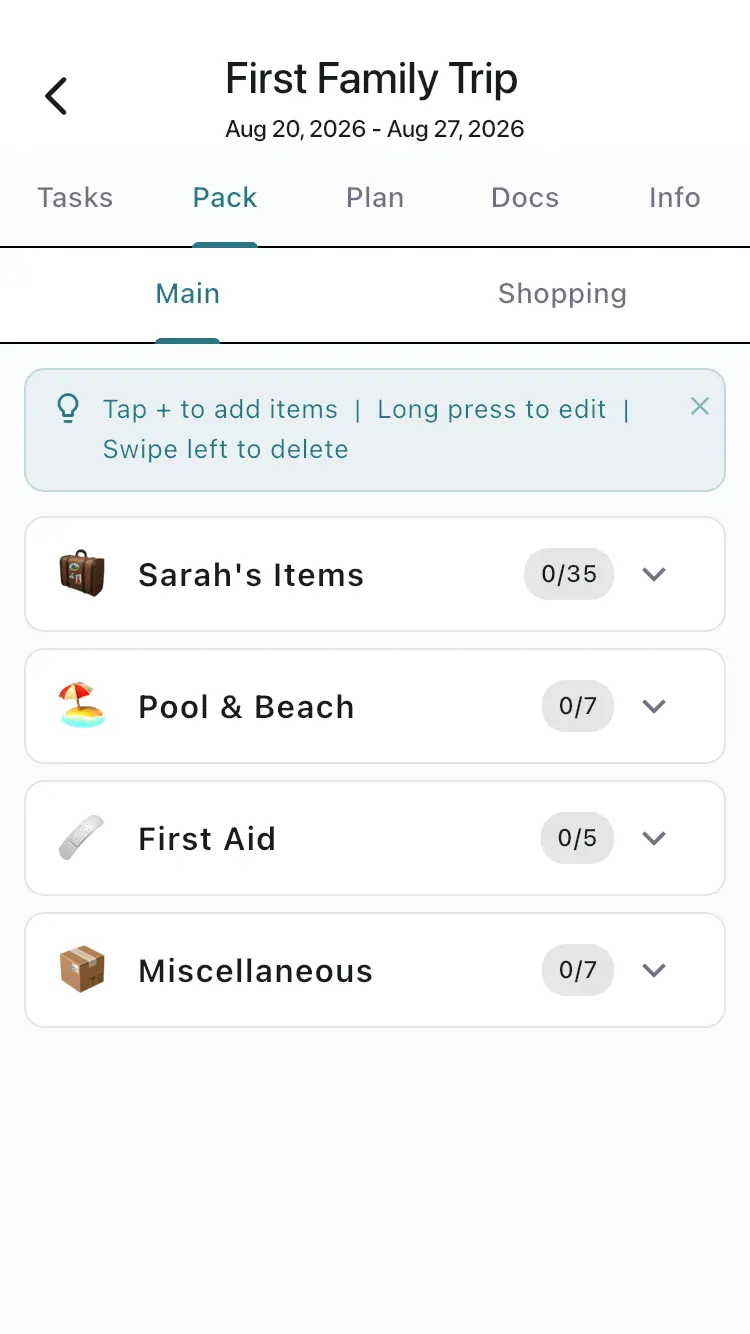
Step 4 — Pack smarter
Switch to the Pack tab. FamGo builds categorized packing lists from your family profile and trip style — clothing, toiletries, kids gear, and trip-specific items. Check items off as you pack. You can move items to the in-app shopping list when you still need to buy something.
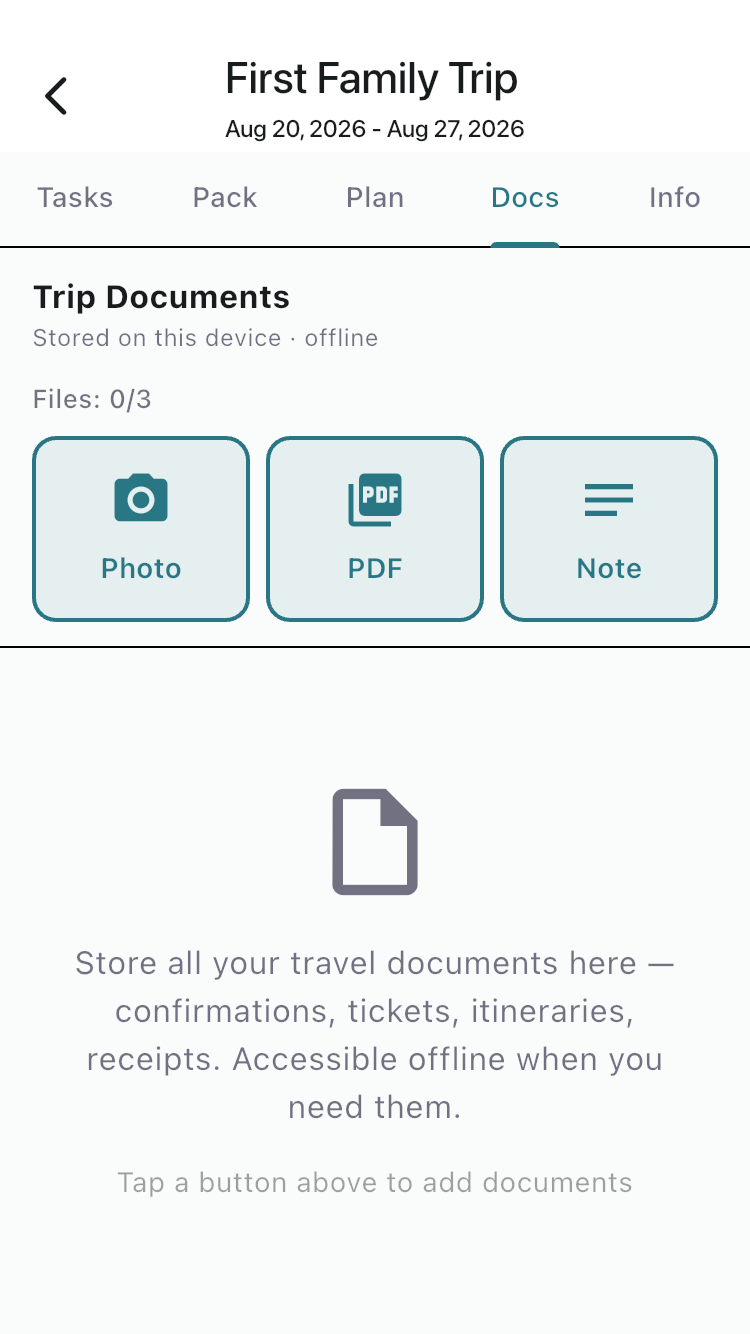
Step 5 — Store documents (up to 3 on Free)
The Docs tab stores boarding passes, hotel confirmations, insurance cards, and PDFs on your device. Free users can upload up to three documents per trip. Everything stays available offline at the airport — no digging through email.
Step 6 — Trip Info and what’s next
The Info tab holds trip settings — dates, destination, travel method, and delete trip. When you are ready for more, Premium unlocks unlimited trips, the structured Plan tab, Disney cruise import, partner household sync, and group trip invites.
Frequently asked questions
Do I need internet to use FamGo?
No for everyday planning. Packing, tasks, and documents work offline. Internet is needed for app download, subscription management, and Premium sync features.
Can I plan a second trip on Free?
Free includes one active trip at a time. Archive or delete your current trip, or upgrade to Premium for unlimited trips.
What if I travel with my partner?
See our partner planning guide — Premium links your household so both phones share the same trips and packing lists.
Ready to try it? Download FamGo for iOS or Android. Compare plans on Pricing.