Household partner linking is different from inviting friends on a single trip. When you link with your co-parent, you merge into one household — all your trips, family profiles, packing lists, and household tasks sync between both phones. One Premium subscription covers both partners.
Step 1 — Upgrade to Premium
One partner subscribes to Premium from Settings → Upgrade. Only one subscription is needed — when you link, your co-parent gets partner sync benefits too. Internet is required for linking and ongoing sync; core planning still works offline on each device.
Step 2 — Open Family Profiles
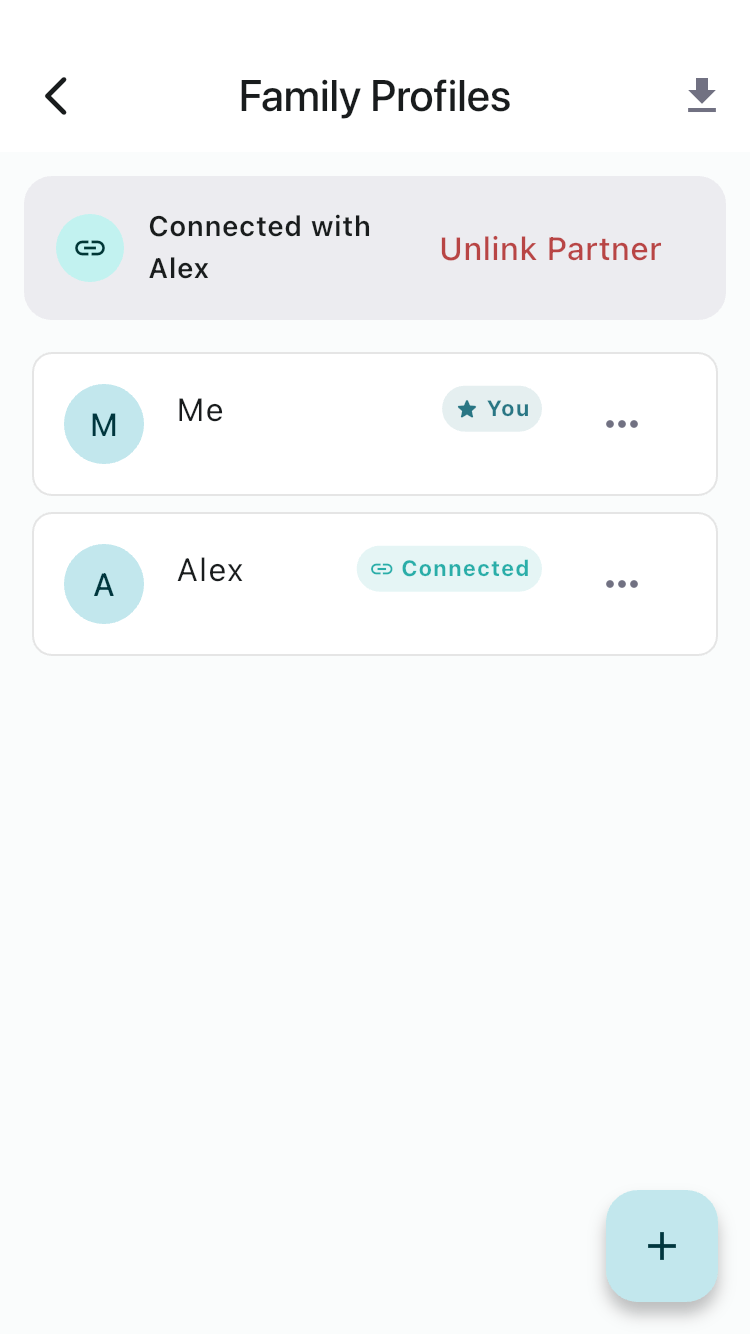
From the trip list, tap the family icon in the app bar to open Family Profiles. This is where partner linking lives — not on the trip Info tab.
Step 3 — Send the household invite
In the Connect with your partner section, enter your co-parent’s FamGo email address and tap Invite. They will see a pending invite the next time they open Family Profiles (or after sync on the trip list). You will see Invite sent until they accept.
Step 4 — Partner accepts
On your co-parent’s phone, open Family Profiles and tap Accept on the pending invite. FamGo merges your households — family member profiles, trips, and packing sync across both devices. If there are profile conflicts (duplicate names), FamGo walks you through resolving them. Once linked, both partners see Connected with [name] at the top of Family Profiles.
Step 5 — Create and sync trips
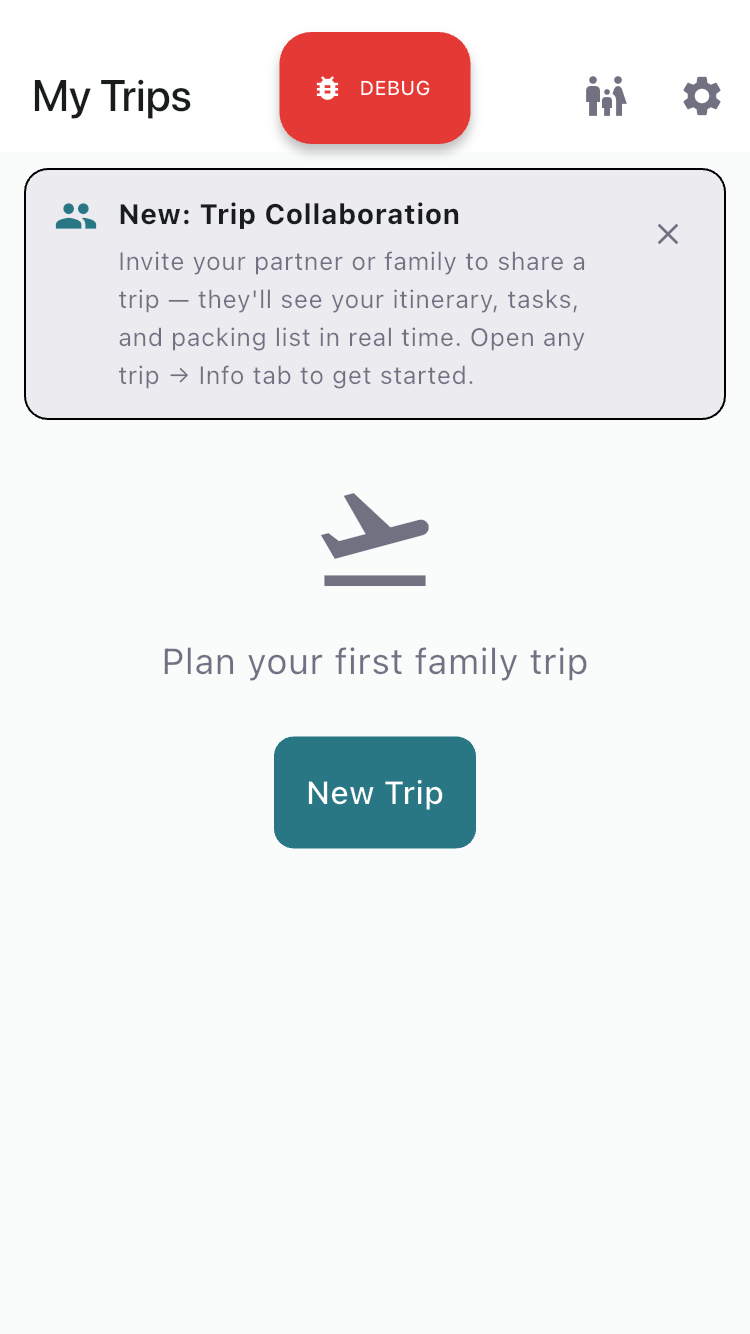
Create a trip as usual — your partner sees it appear on their trip list automatically. Both of you can check off tasks, update packing, and edit household itinerary plans. Changes sync when online.
Step 6 — Split tasks with Me / Partner
On the Tasks tab, use the Me and Partner filter chips to see who owns which prep items. When creating a trip, your linked co-parent is auto-selected under Who’s going and as co-planner. Assign tasks so nothing falls through the cracks.
What syncs vs. what stays private
Frequently asked questions
Do both partners need their own Premium subscription?
No. One Premium subscription covers both linked household partners.
What happens if we unlink?
The household owner keeps all data. The former partner loses access to the shared household immediately and gets a new empty household.
Can we also invite grandparents on one trip?
Yes. Partner link and group invites work together — your partner sees all household trips, and you can still invite other families to collaborate on a specific shared trip.